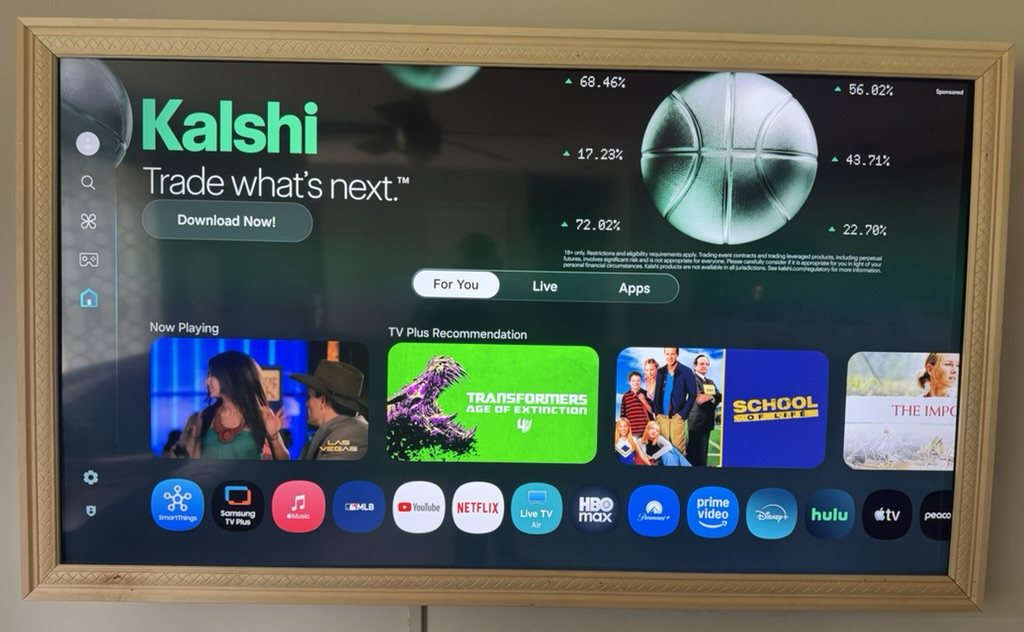
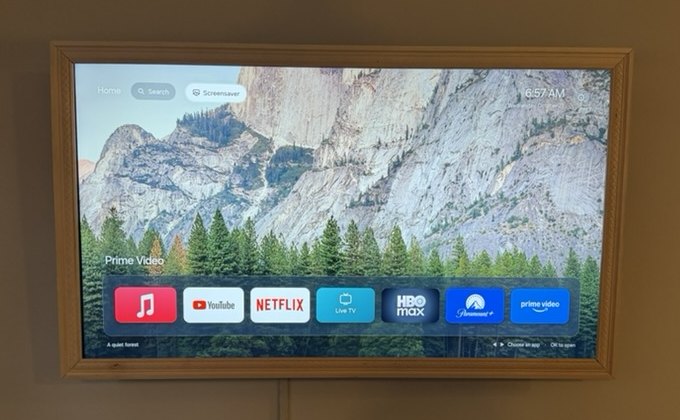
Help me improve my TV's home screen and reduce clutter, using reversible changes appropriate for my exact TV.

MY SETUP
- TV brand and exact model: [ADD MODEL OR ATTACH A PHOTO OF THE MODEL INFORMATION]
- TV software version, if known: [ADD VERSION]
- Computer I can use: [MAC / WINDOWS / LINUX]
- Favorite apps, in dock order: [ADD YOUR LIST]
- Features I use and want preserved: [LIVE TV, CASTING/AIRPLAY, VOICE CONTROL, GAMING, SOUNDBAR, ETC.]
- Screensaver: [USB DRIVE NAME AND EXACT VIDEO FILENAME, OR NONE]
- Design reference: [ATTACH A PHOTO OR DESCRIBE THE LOOK]
- Photos attached: [MY TV'S ABOUT SCREEN, MY CURRENT HOME SCREEN, THE APP LOGOS AND CARDS I LIKE]

START WITH COMPATIBILITY
Identify my TV's operating system and supported developer connection before giving commands. Do not assume it uses Android or ADB. Explain what my model can actually support, what tools or permissions are required, and what I need to do on the TV. If you cannot directly access my computer or TV, guide me through the steps and ask for the results. Never claim you connected, installed or tested something unless it happened.

BACK UP BEFORE CHANGING ANYTHING
Record the original state of every setting and app flag you intend to change. Back up relevant configuration and any existing custom launcher before an update. Explain what the backup covers and what it does not. Never uninstall an app. Disable only verified optional components, reversibly, and ask me first about apps or features I might use. Do not root the TV, flash firmware or factory-reset it. Explain any method outside normal developer tools before using it.

BUILD THE HOME SCREEN
If my model supports it, build and install a lightweight Home screen with an Apple TV-style dock, wide rounded app cards, recognizable logos and rotating nature wallpapers. Use my reference image to guide the appearance. Keep the app order I supplied. Preserve access to the original Home and TV settings. Keep the new Home free of advertising feeds and unnecessary network requests. Do not promise to remove ads inside streaming apps or channels.

Make the remote's Home button open the new screen, and make it appear automatically when I turn on the TV, if supported. Preserve movie and show search across the services my TV's search actually supports. Explain any limitations.

ADD MY VIDEO SCREENSAVER
If I supplied a USB video, read it directly without changing the original file. Start it after five minutes of inactivity on the main Home screen. Remote input should reset the timer. It must not start over a streaming app or interrupt something I am watching.

Play it muted with looping enabled. Save its playback position on the TV about every ten seconds and when I exit. Resume from that saved position the next time, including after restarting Home, if supported. Back, OK or an arrow should return me to Home. Handle a missing USB drive without leaving the screen stuck or black. Provide a Manual option so I can turn automatic playback off.

VERIFY AND PROVIDE RESTORATION
Work in small steps. Capture before-and-after TV screenshots where available and verify changed values. If screenshots cannot show a hardware video layer, explain that and ask me to confirm what is visible.

Test remote navigation, opening apps, returning Home, ordinary power-on, the full five-minute idle interval, stopping and resuming the video, and resume after restarting Home. Check that features I asked to keep remain available. Distinguish an app opening from testing its account and actual media playback.

Give me the source files, installable app if one was created, a change log, backups, simple usage instructions and a restore script that returns the recorded settings to their originals without uninstalling apps. Test the restore steps where practical, and clearly list anything not verified.

Start by assessing my setup and asking only for the information needed to choose a workable approach. Do not make unsupported changes just to force the requested result.